How to Edit Text in Image Online
Have you ever found the perfect image but needed to change just one word? Maybe a spelling mistake slipped into your design, or you wanted to translate a poster into another language. Learning how to edit text in image can save hours of redesign work and help you reuse graphics without starting from scratch.
Thanks to modern editing software and AI-powered tools, changing text inside an image has become much easier than it was a few years ago. According to Adobe’s Creative Trends report (2025), AI-assisted editing has significantly reduced the time required for common design tasks, including text replacement and background editing. At the same time, platforms like Canva continue to simplify graphic editing for millions of users worldwide.
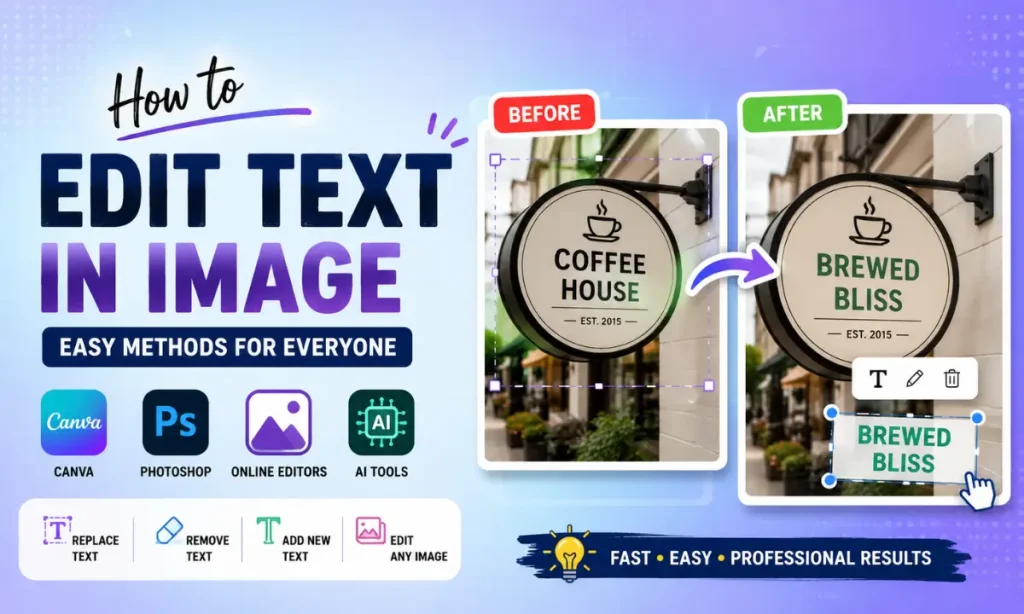
Whether you’re a blogger, designer, marketer, student, or business owner, this guide explains the easiest ways to edit image text using professional software and free online tools.
Also check: How to Create a Happy Birthday Cake with Name and Photo & krea ai free.
What Does It Mean to Edit Text in an Image?
Editing text inside an image means replacing, correcting, removing, or adding words that already appear within a picture.
Unlike editing a Word document, image text usually becomes part of the graphic itself after export. This makes changes slightly more challenging because the letters are treated as pixels instead of editable text layers.
Common situations include:
Raster Images vs Editable Designs
Before choosing a tool, it’s important to understand the image type you’re working with.
Editable designs retain separate text layers. Programs like Canva, Adobe Photoshop, Adobe Illustrator, and Figma allow you to click directly on text and modify it instantly.
Raster images, including JPG, PNG, and screenshots, flatten everything into pixels. The original text layer no longer exists, so you must first remove the existing words before adding new text.
This distinction determines how much effort your edit will require.
Why Text Editing Can Be Challenging
Several factors make text replacement difficult:
How to Edit Text in Image Using Different Methods
There isn’t a single solution that works for every image. The best method depends on your file type and the software available.
The four most common approaches include:
- Canva
- Adobe Photoshop
- Free online editors
- AI-powered editing tools
Let’s look at each one.
Method 1: Using Canva
Many beginners search for how to edit text in image with canva because Canva offers one of the easiest editing experiences. If you still have the original Canva project, editing takes only a few seconds.
Simply:
- Open your design.
- Click the existing text.
- Type the new wording.
- Adjust font, spacing, and alignment.
- Download the updated image.
If the design has already been exported as a PNG or JPG, Canva’s Magic Eraser can help remove old text before adding new text boxes. This works especially well for simple backgrounds.
Canva is ideal for:
Method 2: Adobe Photoshop
Photoshop remains the industry standard for image editing. If the original PSD file includes editable text layers, changing text is almost effortless. For flattened images, Photoshop provides advanced tools such as:
Method 3: Free Online Photo Editors
Many users prefer a Free Online photo editor because no installation is required. Popular browser-based editors include:
These platforms support common editing tasks like:
Method 4: AI Image Editing Tools
Artificial intelligence has transformed image editing. Instead of manually cloning backgrounds, AI automatically detects unwanted text and recreates surrounding details. Popular AI features include:
How to Edit Text in Image with Canva
If simplicity matters most, Canva deserves special attention. Millions of creators use Canva every month because it combines professional templates with beginner-friendly editing tools.
Here is the Step-by-Step Guide:
Sign in to Canva.
- Upload your image or open an existing design.
- Select the text layer if available.
- Edit the wording.
- If the text is flattened, use Magic Eraser.
- Add a new text box.
- Match the font, size, and color.
- Position the replacement carefully.
- Download the final image in PNG or JPG format.
Canva also provides brand kits, font pairing suggestions, and alignment guides that help maintain a polished, consistent look.
Edit Text in Image Online
If you don’t want to install software, using an Edit Text in Image Online tool is the fastest solution. These web-based editors work directly in your browser and support common image formats such as JPG, PNG, and WebP.
Most online editors offer features like text removal, object erasing, layer editing, and font customization. Some even use AI to recreate the background automatically after removing text.
Best Online Tools
| Tool | Best For | Free Version | AI Features | Ease of Use |
|---|---|---|---|---|
| Canva | Social media graphics | Yes | Yes | ⭐⭐⭐⭐⭐ |
| Photopea | Photoshop alternative | Yes | Limited | ⭐⭐⭐⭐☆ |
| Pixlr | Quick image editing | Yes | Yes | ⭐⭐⭐⭐⭐ |
| Fotor | AI-powered editing | Yes | Yes | ⭐⭐⭐⭐☆ |
| Adobe Express | Marketing designs | Yes | Yes | ⭐⭐⭐⭐⭐ |
Each tool offers unique advantages. Canva is ideal for beginners, while Photopea provides advanced editing features similar to Photoshop. Pixlr and Fotor are excellent for quick edits, and Adobe Express integrates well with Adobe’s creative ecosystem.
Tips for Professional Text Editing
A good edit should look invisible. The replacement text should appear as if it was part of the original image.
Follow these professional tips:
Final Thoughts
Learning how to edit text in image is a valuable skill for bloggers, marketers, students, designers, and business owners. Whether you choose Canva, Photoshop, an Edit Text in Image Online tool, or a modern Image Text Editor, the process is much easier than it was a few years ago.
Start with a Free Online photo editor if you’re new to image editing, and move to professional software as your skills grow. With the right techniques, you can update graphics, fix mistakes, and create polished visuals in just a few minutes.