How to Edit Screenshot Using AI App and Websites Online
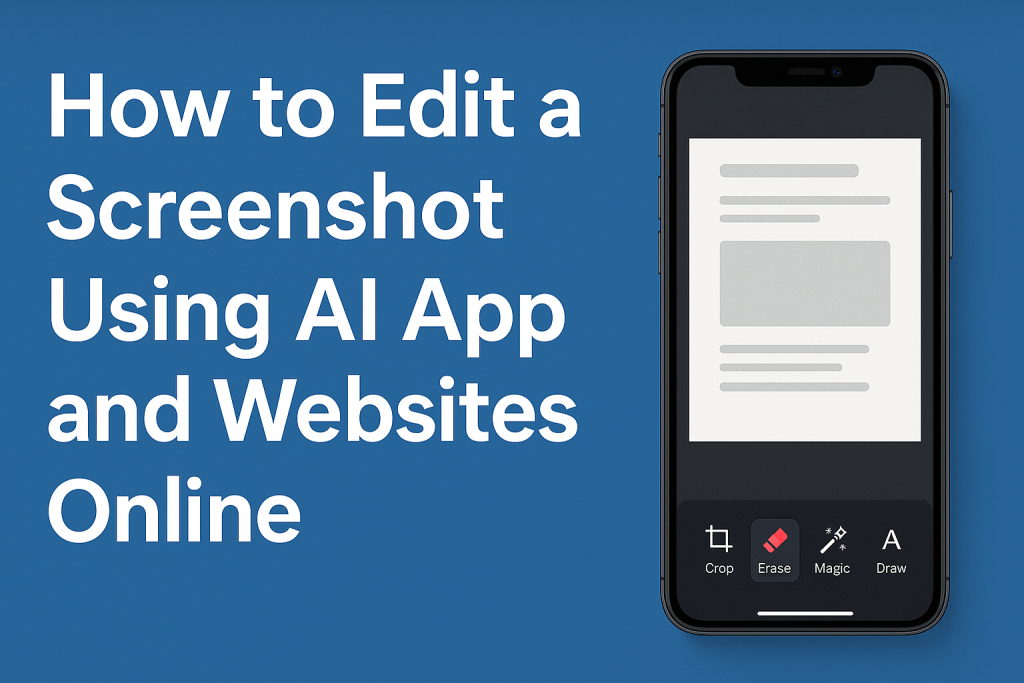
Many people use AI apps and online tools to edit screenshots because they want clear, fast, and simple results without learning advanced software. You can edit a screenshot by uploading it into an AI tool that supports object removal, image enhancement, text cleanup, color correction, and smart cropping. These tools detect parts of the screenshot such as icons, text blocks, shapes, or unwanted items, then apply clean edits in seconds. This method helps users get a polished screenshot for work, school, social posts, or tech guides.
Editing screenshots with AI works well because the system reads the content in the image and finds the best way to improve clarity. AI tools can detect low-quality text, blurred icons, or noise that appears when screenshots come from older devices. Many people use these features to fix messages, app layouts, browser windows, or photo-based screenshots. With the help of online AI editors, the entire process becomes simple and fast.
What Features Do AI Apps Offer for Editing Screenshots?
How do AI tools enhance screenshot quality?
AI screenshot editors improve clarity by sharpening edges, reducing noise, and correcting brightness. When you upload a screenshot, the tool detects text, icons, and interface elements, then restores them for better visibility. Many people use this feature to improve screenshots from older phones, compressed apps, or low-resolution displays. These enhancements help create clean images for documentation, presentations, or tutorials.
How do object remover features help in editing screenshots?
Object removal tools in AI apps are useful when you want to hide personal information, usernames, or extra icons. The system finds the selected area and replaces it with matching colors and patterns. This works well for removing ads, notifications, timestamps, and unwanted elements in the screenshot. People use this to make screenshots look clean and professional for public sharing.
How do AI tools handle text cleanup in screenshots?
Text cleanup helps fix blurry letters, pixelated words, or uneven colors in screenshots. AI detects each block of text and sharpens it so the words look clear. Some tools also offer text extraction, which lets users copy text from the screenshot. This is helpful when working with documents, chat screenshots, study notes, or web pages.
How do cropping and layout tools help?
AI cropping tools detect the main content in a screenshot and remove extra empty areas. This helps reduce blank space and makes the screenshot look focused. Many tools also auto-align screenshots so the edges look straight and balanced. These features help users create cleaner images for reports, guides, and social posts.
How Do Online AI Websites Edit Screenshots?
How does the upload-and-edit process work?
Online tools let you upload a screenshot from your device, then the system scans it for quality issues. The AI finds text, icons, windows, shapes, and colors that need improvement. After the scan, the tool suggests edits like cleaning noise, enhancing text, or removing objects. Users choose the edits they want, and the website applies them instantly.
How do online tools handle background fixes?
AI background fixes remove patterns, shadows, or unwanted areas behind the screenshot. This is helpful in screenshots taken from apps, games, chats, or web pages with distracting colors. The tool creates a clean and even background that supports better readability. Many people use this feature for note-sharing or documentation.
How do AI websites support screenshot resizing?
Online AI editors can resize screenshots to fit specific platforms such as social media, documents, or presentations. The system keeps the text sharp and maintains proper proportions. This prevents distortion and makes the screenshot look more polished. It also helps when users need a standard size for tutorials or guides.
Why Do People Prefer AI Tools for Editing Screenshots?
Why is AI screenshot editing faster than manual editing?
AI tools complete tasks in seconds because they detect patterns and make corrections automatically. Manual editing requires selecting each object, adjusting settings, and fixing errors by hand. AI apps handle enhancement, object removal, and text fixes without extra steps. This speed helps users who need multiple screenshots edited quickly.
Why is AI more accurate for technical screenshots?
AI can understand interface elements such as buttons, menus, text fields, and icons. This allows the system to edit without damaging important details. Manual editing may cause uneven edges or unwanted blur. AI systems keep the original layout intact while improving quality.
Why do users rely on AI tools for privacy edits?
Many screenshots contain private information like names, contacts, or chat messages. AI tools can blur, remove, or mask sensitive areas with clean output. This makes sharing safer and more controlled. It also prevents mistakes that happen in manual editing.
What Types of Screenshots Can Be Edited with AI?
How does AI edit chat screenshots?
AI tools improve chat screenshots by sharpening message bubbles, cleaning background noise, and hiding personal data. Many people edit chat screenshots for tutorials, online help pages, or social posts. The system detects each bubble and adjusts text clarity. This makes the screenshot readable even when taken from low-quality screens.
How does AI edit app or software screenshots?
AI reads interface elements like buttons, tabs, windows, and icons. It enhances edges, brightens colors, and removes unwanted overlays. Many creators use this for guides, instructions, and product demos. The tool keeps each component clean and stable.
How does AI edit gaming screenshots?
Gaming screenshots often contain dark areas, motion blur, or complex textures. AI enhances lighting, sharpens objects, and removes noise. Some tools also allow background fixes in game menus or in-game UI. These edits help gamers share better screenshots online.
How does AI edit webpage screenshots?
AI enhances webpage screenshots by improving text clarity and cleaning layout lines. It removes ads or pop-up elements with the object remover tool. Users often upload these for research notes, blog posts, or documentation. The edits help make the content easier to read.
How to Edit a Screenshot Step by Step Using AI Apps
How to upload a screenshot into an AI app?
Open the AI app, select the upload option, and choose the screenshot from your device. The app scans the image and shows the detection results. This includes areas such as text blocks, shapes, icons, or unwanted elements. After scanning, you can choose the edits you want.
How to improve clarity and text quality?
Select the image enhancement option. The tool sharpens edges, adjusts contrast, and cleans pixel noise. You can review the changes and save the improved screenshot. This works well for documents, notes, and chat screenshots.
How to remove unwanted objects or elements?
Choose the object remover tool and mark the area. The system replaces the marked area with matching pixels so it blends naturally. This helps remove ads, names, timestamps, or icons. The final result looks smooth and uniform.
How to crop and adjust layout?
Use the AI smart crop feature. It detects the main area and removes unused space. This makes the screenshot look balanced and focused. You can then save or export the final version.
How to Edit a Screenshot Using Online AI Websites
How to upload and start editing?
Visit the AI website, click the upload button, and choose your screenshot. The system scans the image and prepares editing options. You can select enhancement, removal, or layout adjustments. Then apply and download the final version.
How to handle privacy edits online?
Use blur or mask tools to hide sensitive areas. The AI identifies text blocks, usernames, or icons and covers them. This helps users share screenshots safely. It also prevents exposure of personal details.
How to export the edited screenshot?
After editing, choose the export resolution and file format. Many websites offer PNG, JPG, or high-resolution options. This ensures the screenshot is ready for sharing. The final output remains clear and well-balanced.
What Are the Benefits and Limits of Editing Screenshots with AI?
What are the main benefits?
AI tools save time, improve quality, and make editing simple. They offer one-click enhancement, object removal, text cleanup, and smart cropping. Users get clean and polished screenshots without manual adjustments. These features help people who need fast and effective edits.
What limitations should users expect?
AI may struggle with low-resolution screenshots or images with heavy distortion. Some small icons may not be detected correctly. Removing complex items may leave minor marks. Even with limits, the tools still work well for most tasks.