How to Edit Photos Using VM Editor
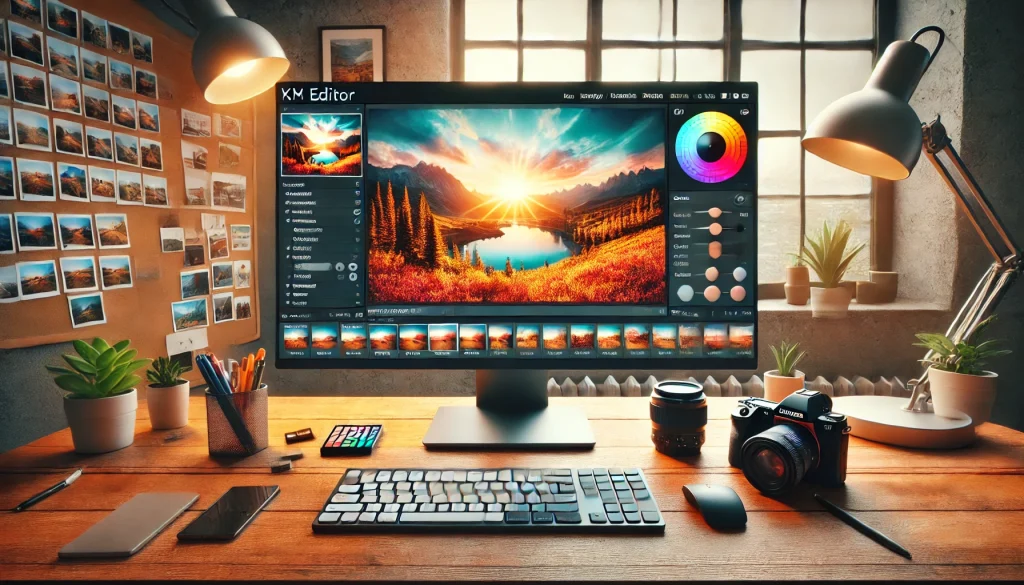
Editing photos using VM Editor is simple and does not require advanced skills or heavy software. VM Editor, available at vmeditor.in, allows users to upload photos, make edits, and download results directly from a browser.
If you want clean photo edits without confusion, VM Editor is designed for that exact need. The tools are placed clearly, so users can focus on improving images instead of learning complicated steps.
How Do You Start Editing Photos on VM Editor?
You start editing photos on VM Editor by opening vmeditor.in in your browser and uploading your image. There is no need to install anything or create a complex setup.
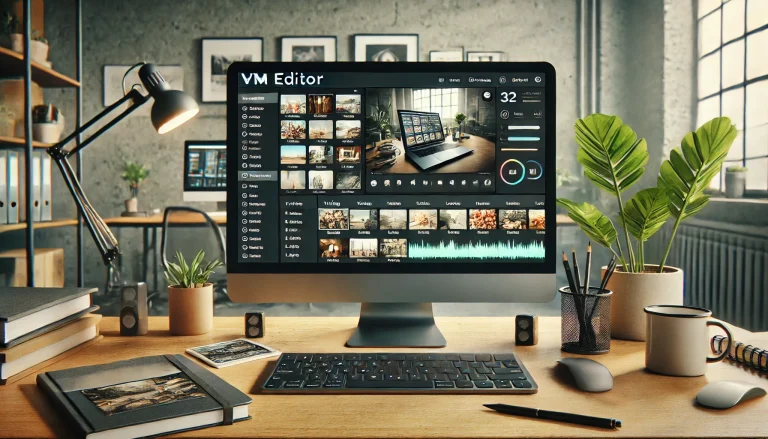
Once the image is uploaded, the editing panel becomes available. From there, you can adjust the photo based on your needs. The layout stays simple so users can work without distractions.
This approach helps beginners feel comfortable from the first step.
How to Upload a Photo on VM Editor
Uploading a photo on VM Editor is a direct process.
First, visit vmeditor.in and choose the upload option. Then, select a photo from your device. The platform supports common image formats used for daily editing.
After the upload is complete, the photo appears in the editing workspace. From here, all editing options are accessible in one place.
This step is quick and works well on both desktop and mobile browsers.
How to Crop and Resize Photos Using VM Editor
Cropping and resizing photos using VM Editor helps adjust image size and focus. These tools are useful when preparing images for websites, social media, or documents.
The crop tool allows users to remove unwanted parts of the image. You can adjust the frame by dragging edges until the image fits your requirement.
The resize option helps change image dimensions. This is useful when specific sizes are needed for uploads or sharing.
Both tools are easy to control and do not affect image clarity when used correctly.
How to Adjust Brightness and Contrast in VM Editor
Brightness and contrast controls in VM Editor help improve photo visibility. These options are useful when photos look too dark or too flat.
Brightness adjustments help make the image lighter or darker. Contrast adjustments help separate light and dark areas for better clarity.
VM Editor allows users to move sliders slowly, so changes remain controlled. This helps avoid over-editing and keeps photos natural.
These tools are often used for basic photo correction.
How to Enhance Colors Using VM Editor
Color adjustment tools in VM Editor help improve how photos look without heavy edits. These controls allow users to refine tones and balance colors.
Users can adjust saturation to make colors stronger or softer. This is useful when images look dull or overly colorful.
VM Editor keeps color changes smooth, which helps maintain a clean appearance. This makes edited photos suitable for professional use.
Color enhancement is helpful for product images and personal photos.
How to Apply Simple Effects in VM Editor
VM Editor includes simple effects that help improve photos without clutter. These effects are designed to add subtle changes rather than heavy filters.
Users can apply effects to improve clarity or mood. Each effect can be previewed before saving changes.
This preview option helps users decide whether the effect fits the photo. It also prevents unwanted edits.
The goal is to enhance photos while keeping them realistic.
How to Save and Download Edited Photos from VM Editor
After editing, saving the photo in VM Editor is straightforward. Users can preview the final result before downloading.
Once satisfied, the download option allows the edited image to be saved to the device. The output quality remains clear and suitable for online use.
This step completes the editing process without extra steps or delays.
Who Should Use VM Editor for Photo Editing?
VM Editor is suitable for anyone who wants simple photo edits without complexity. It works well for students, creators, freelancers, and small business owners.
People who edit photos regularly will benefit from the clean workflow. Beginners will also find the platform easy to understand.
Since VM Editor works online, it is accessible from different devices without storage issues.
Why VM Editor Is a Practical Choice for Photo Editing
VM Editor focuses on clarity and ease. It avoids cluttered menus and unnecessary tools that slow users down.
The platform helps users complete photo edits quickly while keeping results clean. This makes it useful for daily tasks and basic editing needs.
VM Editor offers a balanced editing experience without overwhelming users.
Final Thoughts on Editing Photos Using VM Editor
Editing photos using VM Editor is simple, quick, and accessible. The platform at vmeditor.in supports users who want clean results without advanced knowledge.
By offering clear tools and an easy workflow, VM Editor helps users improve photos with confidence. It is a practical choice for everyday photo editing needs.