How to Edit Your Google People Card in 2025: A Complete Step-by-Step Guide
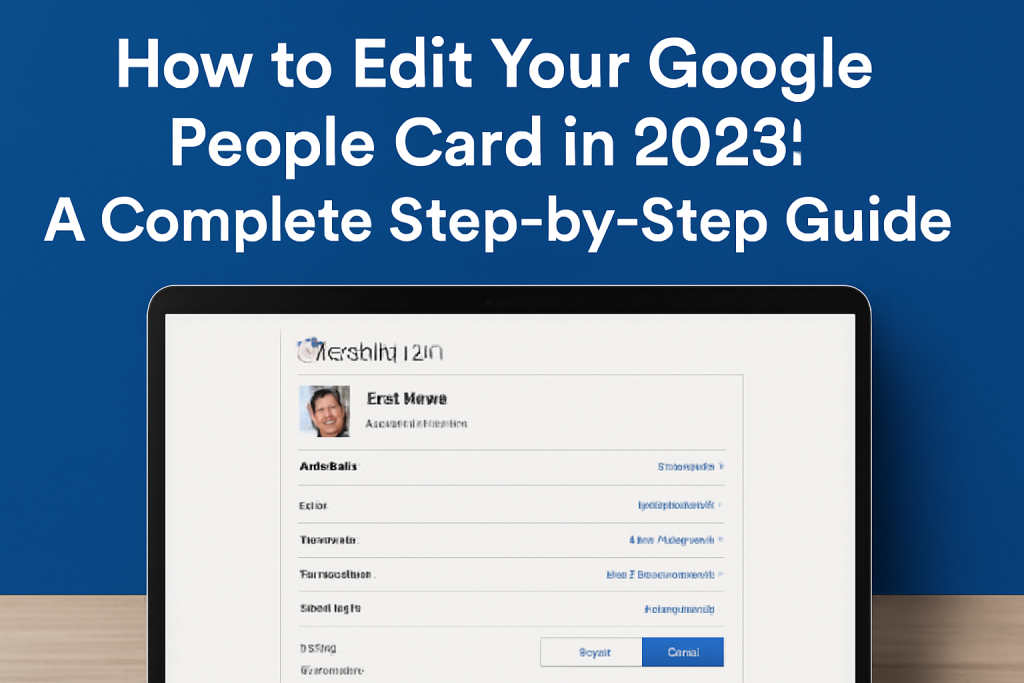
In 2025, a Google People Card is your online identity card that shows up when someone searches for you on Google. It’s like a mini digital resume that provides key information such as your name, bio, job title, social media links, and more. Think of it as an online business card, designed to help you stand out in Google Search results.
Having an up-to-date Google People Card is essential for maintaining a strong online presence. Whether you’re a professional, a freelancer, or just someone looking to make a positive impression, keeping your People Card fresh is important for personal branding. The more detailed and accurate your card, the more likely people will find you easily when searching for your name. Plus, it boosts your visibility, making sure you’re seen by potential clients, employers, or collaborators.
So why edit it? Well, in 2025, search visibility is everything. With more and more people relying on Google Search to find contact information, networking opportunities, and professional profiles, your People Card is one of the first places people will look. Keeping it updated ensures that you’re giving the right impression and providing easy access to your professional details.
How do I edit my People Card on Google?
Editing your Google People Card is simple. Here’s a step-by-step guide to help you get it done:
- Sign into Your Google Account:
First, ensure you’re logged into your Google account. This is necessary to make any edits to your People Card. - Search for Yourself on Google:
Next, type your name into Google Search. If you already have a People Card, you’ll see it pop up at the top of the search results. Click on the card to open it. - Click “Edit” or “Add Info”:
Once you’ve opened your Google People Card, look for the “Edit” option (it may say “Add Info” if you’re creating one for the first time). Click on it. - Update Your Information:
You’ll now be able to update your details. You can add or edit your name, photo, job title, location, and links to your social media or personal websites. Be sure to fill in as much relevant information as possible to make your card more effective. - Save Your Changes:
After making your edits, don’t forget to hit the “Save” button. This ensures that all your updates are applied.
One thing to note is that Google is continuously improving its tools. The editing process might look slightly different based on updates or changes in the Google interface. But overall, it’s designed to be simple and user-friendly.
How do I get started with editing my Google People Card?
Getting started with editing your People Card is easy, even if you’ve never done it before. Here’s what you need to know:
- Creating a Google People Card (if you don’t have one yet):
If you’ve never created a People Card, the first step is to do so. Go to Google Search and type “edit my people card.” You’ll be prompted to sign into your Google account if you aren’t already logged in. From there, you’ll see an option to add your details. - Adding Personal and Professional Information:
Once you’re in the editing section, start by adding personal information such as your full name and a profile photo. Then, add your professional information like your job title, company, or a brief description of what you do. This is crucial because it’s the first thing people see when they search for you. - Adding Links to Your Social Profiles:
A People Card also allows you to add links to your social media profiles, personal website, or portfolio. This makes it easier for others to contact you or learn more about your work. The more links you add, the more comprehensive your card becomes. - Keep It Short and Sweet:
While it’s important to provide relevant information, keep your descriptions short and clear. You want to give a snapshot of who you are, not write an entire biography. Aim for a bio that highlights your most important professional accomplishments and what sets you apart.
Tips for beginners: What to include in your People Card for maximum impact?
- Profile Picture: A professional-looking photo is a must. It helps humanize your card and makes it easier for people to recognize you.
- Clear and Concise Bio: Write a short and impactful description about who you are and what you do. Focus on what makes you stand out in your industry or field.
- Relevant Social Media Links: Add links to your LinkedIn, Twitter, or other platforms where you’re active and professional. This helps people connect with you easily.
- Contact Information: If you’re comfortable, add a way for others to reach you. This could be an email address or a link to a contact form.
By following these simple steps and tips, you’ll have a fully optimized Google People Card that makes a great first impression every time someone searches for you.
How can I edit my Google People Card on my phone in 2025?
Editing your Google People Card on your phone is easy and only takes a few steps. Whether you’re using an iPhone or an Android device, the process is similar and can be done directly through Google Search. Here’s how:
- Sign into Google on Your Phone:
Before you can edit your People Card, you need to be signed into your Google account. If you’re not logged in, open the Google app or go to Google Search on your browser, then sign in with your credentials. - Search for Your Name:
In the Google Search bar, type your full name. If you already have a People Card, it will appear at the top of the search results. Tap on the Google People Card to open it. - Click “Edit” or “Add Info”:
Once the People Card opens, you’ll see an option to “Edit” or “Add Info” (depending on if you already have an existing People Card or are creating one from scratch). Tap on this option. - Make Your Edits:
Now, you can start editing your information. Update your name, add or change your profile picture, job title, location, social links, and any other personal details you want to modify. - Save Changes:
Don’t forget to save your changes! After making all your updates, tap the “Save” button to apply them.
Mobile-Specific Features: Key Differences Between Editing on Desktop vs. Mobile
Editing your People Card on mobile is very similar to doing it on desktop, but there are some small differences:
- User Interface: On mobile, the layout may be more compact, with clickable buttons for editing that are optimized for touchscreens.
- Accessibility: On mobile devices, you don’t have to open a separate editing window—everything is right there on the Google Search page.
- Limited Features: While the main features like editing your name, profile photo, and links are the same, certain desktop-only features, like customizing some display options, may not be available on mobile.
Overall, the mobile editing experience is designed to be simple, direct, and quick, allowing you to update your Google People Card while on the go.
How do I add myself to Google or edit my Google People Card?
If you haven’t yet created a Google People Card or want to update your existing one, here’s how you can do it:
- Search “Edit My People Card” in Google:
Open the Google app or go to the Google Search page. Type “edit my people card” into the search bar, and the results will give you a link to start the process. - Sign into Your Google Account:
If you’re not already logged in, Google will prompt you to sign in to your account. Make sure you use the account you want to associate with your People Card. - Create or Edit Your People Card:
Once logged in, you’ll see the option to either create a new People Card or edit an existing one. If you’re adding yourself for the first time, start by filling out basic details like your name, photo, and job title. If you’re editing, simply update the information you want to change, such as adding new links or adjusting your contact information. - Save and Review:
After making your changes, click “Save.” Make sure all the information is correct, as this will be what others see when they search for you on Google.
Troubleshooting: What to Do If the People Card Doesn’t Appear in Google Search
If your People Card isn’t showing up after adding or editing it, here’s what you can try:
- Wait a Little: It might take some time for Google to index the new or edited information. Give it a few hours or even a day.
- Recheck the Information: Make sure all required fields are filled out properly. Missing information can sometimes cause the People Card to not appear.
- Verify Your Google Account: Make sure the Google account you’re using is verified, and you’re logged into the correct account.
- Clear Cache and Cookies: If you’re still having issues, try clearing the cache and cookies in your browser or app to ensure you’re seeing the most up-to-date version of your People Card.
Why is my Google People Card not showing up in Google Search?
If your Google People Card isn’t appearing in search results, it can be frustrating. Here are some possible reasons why this might be happening, along with tips to fix the issue:
- It’s Still Being Processed by Google:
Sometimes, after making edits, Google takes a little while to update the Google People Card in search results. This can take anywhere from a few minutes to a few hours, or even up to a day. - Incomplete Information:
If your People Card isn’t complete or lacks key details like a profile photo, job title, or social media links, it might not show up. Google’s system prioritizes full and detailed cards, so make sure you’ve added all relevant information. - Google Account Verification:
If your Google account is not fully verified, your People Card might not show up. Make sure you’ve completed any verification steps, such as linking your phone number or verifying your email. - Privacy Settings:
If your account privacy settings are restrictive, it might affect whether your People Card is visible to others. Double-check your privacy settings to ensure your card is publicly accessible. - Google’s Search Algorithm:
Sometimes, Google might not prioritize displaying your People Card right away, especially if your name is common or there are other people with similar details. Google’s algorithm decides which cards to show based on relevance, so being patient and continuing to optimize your Google People Card will help.
Solutions to Troubleshoot Visibility Issues
- Double-check your details: Ensure everything is filled out completely, especially your name, photo, and contact info.
- Reverify your Google account: Ensure your Google account is verified and actively used.
- Wait for Google to index your changes: Give it some time, as the process can sometimes take a little while to reflect.
- Reach out to Google Support: If you’ve waited and tried everything, but your Google People Card still isn’t showing, you can contact Google support for assistance.
How do I edit my Google People Card on an iPhone?
Editing your Google People Card on an iPhone is simple and can be done directly through Google Search or the Google app. Follow these steps to get started:
- Sign Into Google:
First, make sure you’re signed into your Google account. Open the Google app or go to Safari (or any browser) and log into your Google account if you haven’t already. - Search for Your Name:
In the search bar, type your full name. If you already have a People Card set up, it should appear at the top of the search results. Tap on the Google People Card to open it. - Tap “Edit” or “Add Info”:
Once the Google People Card opens, you’ll see an option to either “Edit” or “Add Info” (if you’re setting up the card for the first time). Tap on the appropriate button to start editing. - Edit Your Information:
Now, you can edit your People Card. Update your profile picture, bio, contact details, job title, social media links, and other personal information. Make sure everything is accurate and up-to-date. - Save Changes:
After you’ve made your edits, tap “Save” to apply the changes. Your People Card will be updated across Google Search.
Using Google Search vs. Google App on iPhone:
Editing your Google People Card via Google Search in Safari or any other browser is very similar to using the Google app. The main difference lies in the interface, with the app offering a more streamlined experience. However, both methods are easy to use, and you can edit your Google People Card directly on your phone without needing any special tools or apps.
Can I edit my People Card online for free?
Yes, you can edit your People Card online for free. Google offers this feature at no cost to anyone with a Google account. The process is straightforward and can be done directly through Google Search. Here’s how to get started:
- Go to Google Search:
Open the Google app or a web browser and sign into your Google account. In the search bar, type “edit my people card.” - Start Editing Your Card:
If you already have a People Card, you’ll see the option to edit it directly. If not, you’ll be prompted to create a new card. You can add or change your name, photo, bio, job details, and other relevant information. - No Hidden Fees or Charges:
The editing process is completely free. Google does not charge any fees for setting up or updating your People Card. You just need to have a Google account to get started. - Save Your Changes:
Once you’ve made your changes, click “Save,” and your People Card will be updated instantly in Google Search.
How do I edit my Google People Card in Google Search directly?
Editing your Google People Card directly from Google Search is easy and can be done in just a few steps:
- Search for Your Name on Google:
Open Google Search on your desktop or mobile device and type your name into the search bar. If you have a Google People Card, it will appear at the top of the search results. - Click or Tap on the Google People Card:
Once your Google People Card appears in the search results, click on it. This will open your People Card where you can view and edit the details. - Click “Edit” or “Add Info”:
Look for the “Edit” or “Add Info” button (if you’re creating a new People Card, it will say “Add Info”). Click on this option to start making changes. - Edit Your Information:
You can now update your name, job title, social media links, bio, profile picture, and other personal details. Ensure your information is up to date and relevant. - Save Your Edits:
After you make your changes, click “Save,” and your People Card will be updated. The changes will appear instantly in Google Search.
New Features in Google People Card 2025:
In 2025, Google continues to improve the People Card feature, making it even easier to use. The process for editing your People Card remains the same, but expect additional features and customization options to help make your card more personal and informative.
How can I edit my People Card on Android?
Editing your People Card on Android devices is just as simple as editing it on other platforms. Whether you’re using the Google app or a web browser, follow these easy steps to get started:
- Sign into Your Google Account:
Open the Google app or go to your preferred browser and sign in with your Google account. If you’re not already logged in, Google will prompt you to sign in. - Search for Your Name:
Type your name into the Google search bar. If your People Card already exists, it will show up at the top of the search results. Tap on it to open. - Tap “Edit” or “Add Info”:
Once your People Card appears, you’ll see an option to “Edit” or “Add Info.” Tap the button to start editing. - Update Your Information:
You can now edit your profile photo, bio, contact details, job title, and other relevant personal information. Make sure to update everything accurately. - Save Your Changes:
After editing your details, make sure to tap “Save” to ensure your changes are reflected on your People Card.
Using Google Search vs. Google App on Android:
Just like on desktop or iPhone, editing your People Card on Android is straightforward. The process is nearly identical whether you use the Google app or a web browser. The only difference might be in how the interface looks, but the steps are the same for both. The Google app typically offers a smoother experience for mobile users, but both are effective ways to manage your People Card.
How do I add links or social media profiles to my People Card?
Adding links to your social media profiles or personal websites is an excellent way to make your People Card more effective and accessible. Here’s how to do it:
- Open Your People Card:
First, search for your name on Google. If you already have a People Card, it will appear at the top of the search results. Tap on it to open the card. - Click “Edit” or “Add Info”:
If you’re logged into your Google account, you should see an option to “Edit” or “Add Info” if you haven’t created a People Card yet. Tap this option to start making changes. - Add Social Media Links:
Once you’re in the edit mode, look for the section where you can add your social media or personal website links. You can add URLs for platforms like LinkedIn, Twitter, Instagram, Facebook, or even a personal blog or portfolio. - Save Changes:
After entering your links, make sure to save your changes. This will allow your People Card to display those links publicly in Google Search.
Why Adding Links and Social Media is Important:
Including social media profiles or links to your website can increase the chances that others will engage with your content or reach out to you. It creates a clear path for people to connect with you outside of just seeing your name on Google Search.
Can I use Google’s “Add Me to Google” to edit my People Card?
Google’s “Add Me to Google” feature is a tool to help individuals create a People Card if they don’t have one. However, this feature isn’t used to edit an existing People Card.
- What is “Add Me to Google”?
If you search for “Add me to Google” in Google Search, you’ll be taken to a page where you can create your People Card if it doesn’t already exist. This is the first step for people who have no online profile or presence on Google Search. - What About Editing?
If you already have a People Card and want to edit it, you don’t need to use the “Add Me to Google” feature. Instead, just search for your name on Google and click on your People Card to access the editing options.
Key Difference:
“Add Me to Google” helps people create their People Card if they don’t already have one. Editing an existing People Card happens directly from your Google Search results.
How can I get started editing my People Card on my phone?
Editing your People Card on your phone is quick and simple. Whether you’re using an iPhone or an Android device, here’s a step-by-step guide:
- Sign Into Your Google Account:
Open the Google app or go to the Google website on your phone and sign into your Google account if you haven’t already. - Search for Your Name:
Type your name into the Google Search bar. If you have a People Card, it should appear at the top of the results. - Tap on the People Card:
Once you see your People Card in the search results, tap on it to open. - Click “Edit” or “Add Info”:
When you open the People Card, look for the option that says “Edit” (or “Add Info” if you’re setting up a new card). Tap on it to make your changes. - Make Your Changes:
Edit your name, photo, contact info, social media links, and any other relevant information. Make sure everything is accurate. - Save Your Changes:
After editing, don’t forget to hit the “Save” button. This will ensure your People Card is updated immediately in Google Search.
Mobile vs Desktop Editing:
The mobile process is very similar to editing on a desktop, with the added benefit of being able to update your People Card while on the go. On mobile, you can do everything directly through Google Search without needing extra tools or apps.
What should I do if my People Card is not showing up on Google?
If your People Card isn’t appearing in Google Search, it could be due to several reasons. Here’s what you can do:
- Wait for Google to Index Your Changes:
After editing or creating your People Card, it may take a few hours or even a day for the changes to appear in Google Search. Be patient! - Ensure Your Information is Complete:
A People Card won’t show up if it’s missing key information. Ensure you’ve filled in all the required fields like your name, profile photo, job title, and any relevant links. - Check Account Verification:
Make sure your Google account is verified. If your account isn’t verified, your People Card may not show up in search results. - Clear Cache and Cookies:
If you’re still having issues, try clearing your browser’s cache and cookies or refresh the Google app. Sometimes outdated versions of your People Card are shown until the cache is cleared. - Google Support:
If all else fails, you can reach out to Google Support for assistance.
How can I link my People Card to other Google services or products?
Linking your People Card to other Google products or services can increase your online visibility and make your profile even more accessible. Here’s how you can do that:
- Google My Business:
If you have a business, you can link your People Card to your Google My Business profile. This ensures that your business information and contact details are displayed prominently in Google Search. - Google Contacts:
If you want to link your People Card to your Google Contacts for easier access, you can do so by linking your People Card details to your contact information in Google Contacts. - Other Google Services:
You can also link your People Card to services like Google Calendar (if you want to add your availability) or YouTube (if you have a channel). This makes it easy for people to contact you through these platforms. - Add Links to Your Other Profiles:
Add links to your LinkedIn, personal website, or other professional profiles to your People Card. These links will appear directly in Google Search, making it easy for people to connect with you.
How can I keep my People Card updated for long-term success?
To maintain your People Card’s relevance and visibility over time, it’s important to keep it up-to-date and well-maintained. Here are a few tips:
- Regularly Update Your Information:
Keep your People Card current by regularly reviewing and updating your information. Whether you’ve changed jobs, updated your social media links, or simply have new photos, make sure your People Card reflects your most recent details. - Link to Other Digital Profiles:
Adding links to your other social media profiles, portfolios, or websites keeps your People Card dynamic and more useful for those looking to connect with you. - Monitor Your Visibility:
Periodically check how your People Card appears in Google Search. If something’s out of place, or if there’s a new opportunity to add information, take action immediately. - Complete Your Profile:
A complete People Card is more likely to show up in search results. Don’t leave fields empty—fill in your job title, bio, and social media links.
By keeping your People Card fresh and relevant, you ensure that it remains a powerful tool for professional branding and visibility for the long haul.